The office
Apps
Let your team use Gmail, Slack, Notion, GitHub and hundreds more, acting as you, with writes waiting for your OK.
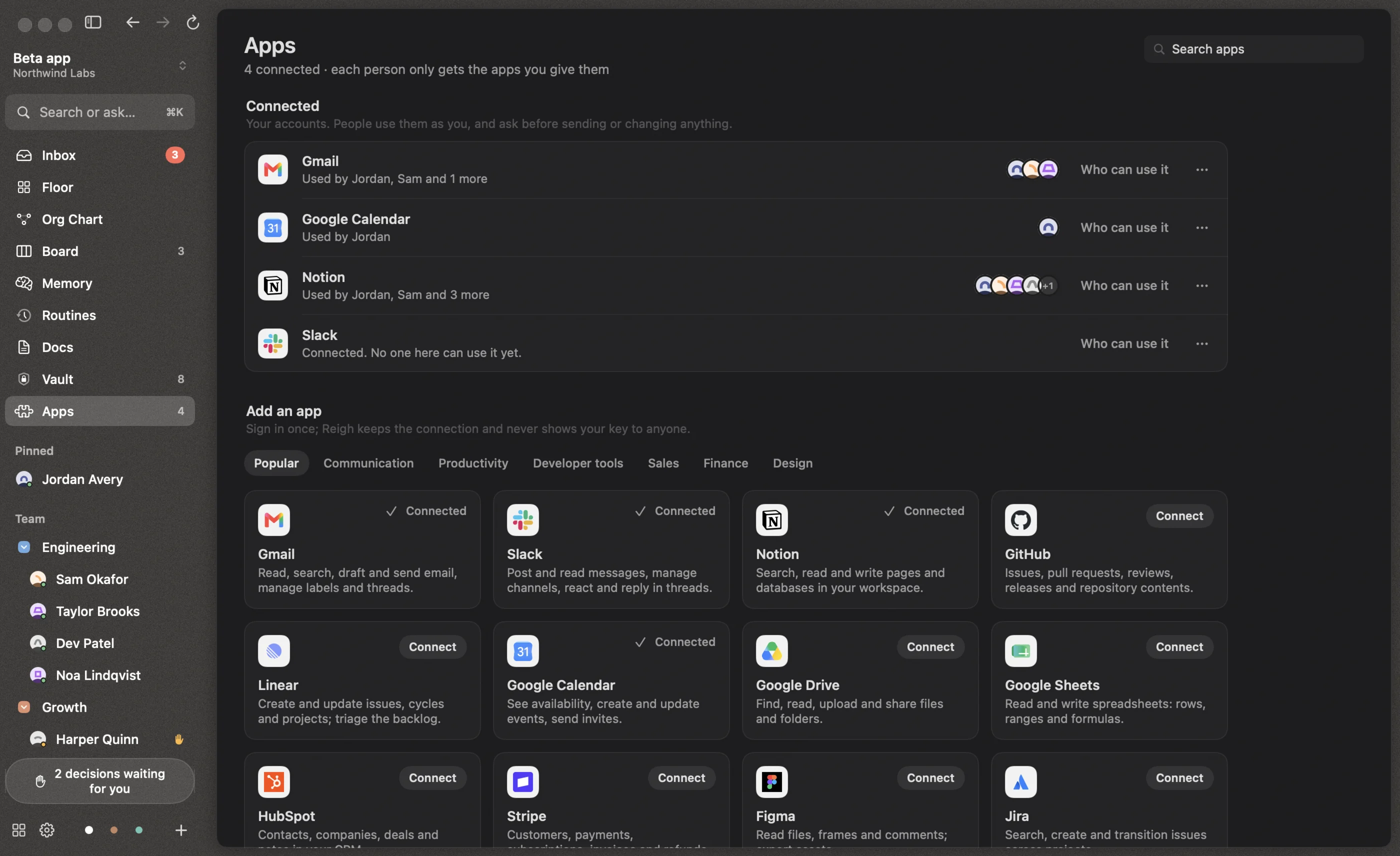
Apps connects your employees to the tools you already use, through Composio. People use them as you: reading happens straight away, and anything that sends, posts, changes or deletes asks you first.
Turn it on
- Open Settings → Apps and paste a Composio key. Reigh checks it with Composio before saving it.
- An Apps screen appears in the sidebar.
The key is stored in your macOS Keychain. Agents never see it. Removing the key hides Apps; your connections and who can use them are kept for when you add a key again.
Connect an app
On the Apps screen, choose an app under Add an app and sign in once in your browser. Reigh connects it as soon as you’re done. Connections belong to you and are shared across your workspaces.
Choose who can use it
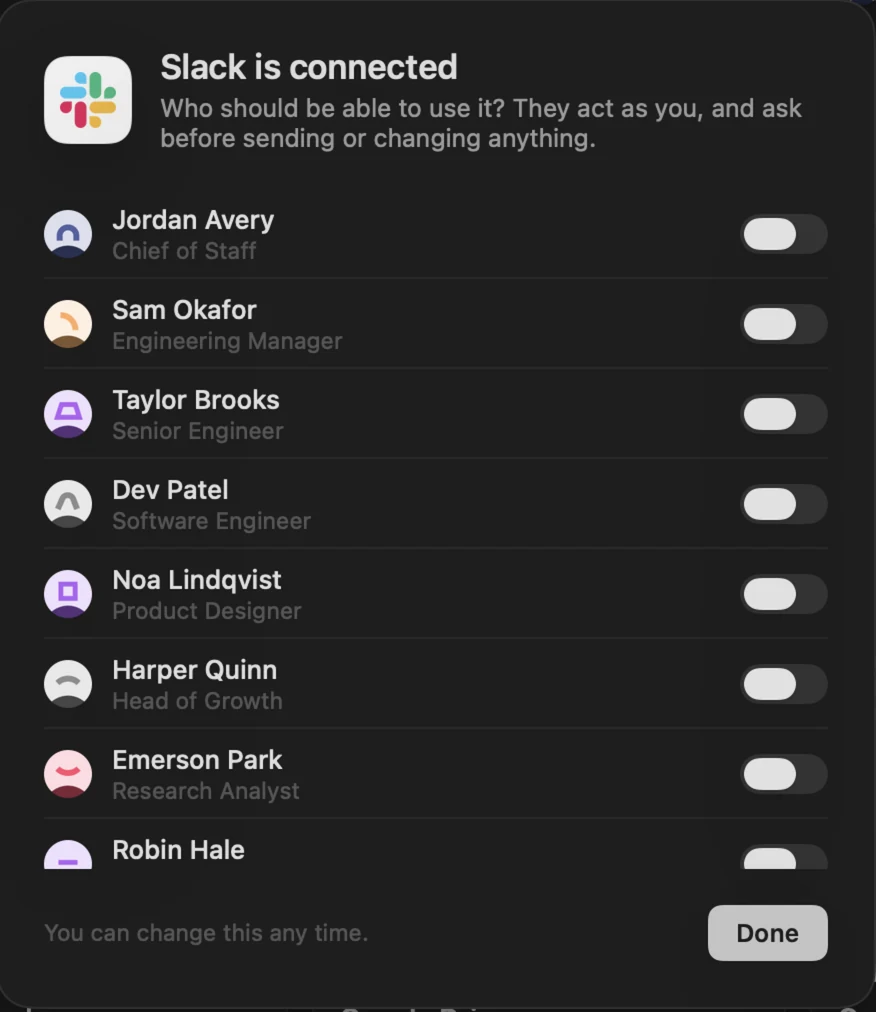
Every app is off for everyone until you turn it on for someone. You can do that:
- on the Apps screen, with Who can use it,
- on someone’s profile,
- or while hiring them, on their hire card.
What agents can do
Employees with at least one app get three office tools:
| Tool | What it does |
|---|---|
apps_list |
The apps they can use |
apps_find_actions |
The actions an app offers, with their inputs. Actions that change something are marked as asking you first. |
apps_run |
Runs an action, such as searching Gmail or posting to Slack |
Actions that only read — get, list, search, fetch, find, read, query and the like — run immediately. Everything else becomes a permission request in your Inbox, unless the employee is Trusted.
Disconnecting
Disconnecting an app revokes the account and removes everyone’s access to it.