The office
Hiring & the org chart
Hire people from a description or a template, place them in the org, choose their brain and autonomy, and reorganize as you grow.
Hire someone
Press ⌘⇧H, click Hire on the Floor or the Org Chart, or type /hire in the command bar. The hire wizard has three steps.
1. Who do you need?
Describe the person in a sentence:
An engineer to fix bugs and keep our iOS app's tests greenClaude drafts a complete candidate from your brief: a name and title, a one-line pitch, three to five responsibilities, a model and effort level, and a written persona. If you’d rather start from a fixed role, choose Pick a role to use a template.
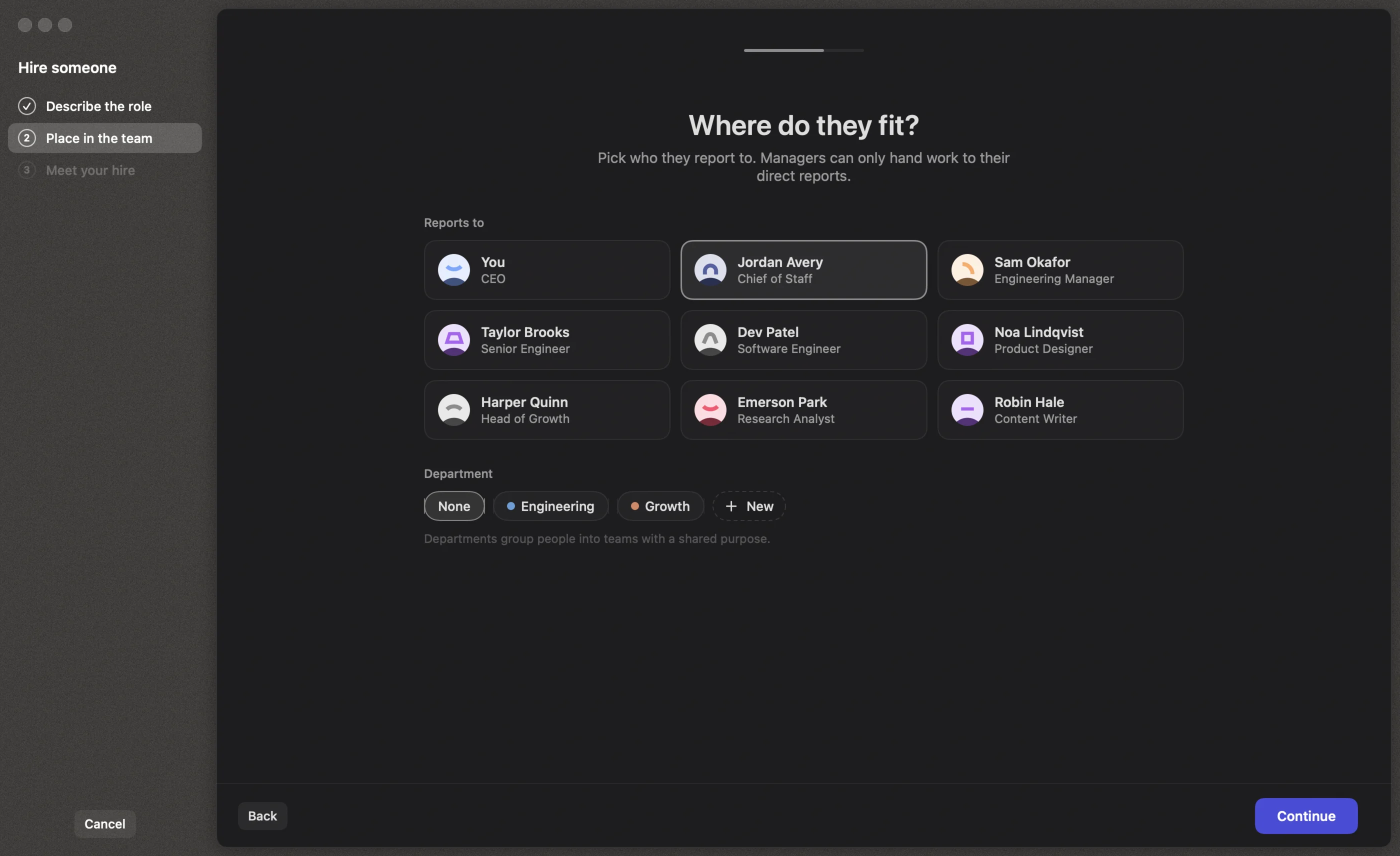
2. Where do they fit?
Choose who they report to (you, or anyone on the team) and their department, or create a new department on the spot.
3. Meet your hire
You get a hire card you can edit before committing: name, title, avatar, pitch, what they’ll own, their brain, manager, team and autonomy. Click Hire and they join the team. They don’t get work until you or their manager give them some.
Proposed hires
Managers and your Chief of Staff can propose hires when the work needs someone new. A proposal arrives in your Inbox as a fully prepared hire card with the reason behind it. Choose Hire, Adjust first to open it in the wizard, or Decline with a note.
Whether someone may propose hires is a switch on their profile: Can propose hires.
Brains: model, effort and fast mode
Each person has a brain you can change at any time from their profile, from the chat composer, or while hiring.
| Model | Good for |
|---|---|
| Fable 5.1 | The most capable model, for the hardest work |
| Opus 5.5 | Best for most work. The default for new seats. |
| Sonnet 5.5 | Fast and capable |
| Haiku 4.5 | Quickest and cheapest |
Effort sets how much the model thinks before acting: Low, Medium, High, Extra high or Max, or Default to let Claude Code choose. Fast mode gives faster output at a higher price on models that support it.
Changing someone’s brain applies from their next turn and keeps the same conversation.
Autonomy
Autonomy decides what someone may do without asking you first:
| Level | What it means |
|---|---|
| Intern | Asks before every action |
| Staff | May edit files, asks before running commands |
| Senior | Acts on their own; risky actions are checked. Recommended, and the default. |
| Trusted | Never asks. Use only where breaking things is cheap. |
Two more switches on the profile shape how they work: Approvals go to their manager (instead of you), and Direct line to you (they can message you directly even if they don’t report to you). See Permissions & guardrails for the details.
Starting teams
When you create a workspace, Reigh suggests a starting team based on what you said it’s for. You can switch to any of them, or start lean.
| Team | Who’s in it | Routines |
|---|---|---|
| Just your Chief of Staff | Start lean; your Chief of Staff proposes hires as real work shows up | — |
| Product engineering | Product Manager, Engineering Manager, Senior Engineer, Software Engineer, QA Engineer | Engineering standup (weekdays 9:30), Weekly priorities (Mondays 10:00) |
| Launch a product | Tech Lead, Full-stack Engineer, Growth Lead, Content Writer, Research Analyst | Launch check-in (weekdays 16:00) |
| Codebase care | Tech Lead, Software Engineer, Test Engineer, Dependencies & Security, Docs Writer | Weekly triage (Mondays), Dependency check (Wednesdays) |
| Research desk | Research Lead, Market Analyst, Technical Analyst, Data Analyst, Editor | — |
| Content studio | Managing Editor, two Writers, SEO & Distribution, Researcher & Fact-checker | Editorial planning (Mondays) |
Every seat comes with a specific brief, and everyone reports up through your Chief of Staff, who also gets a Daily brief routine on weekdays at 9:00.
The org chart
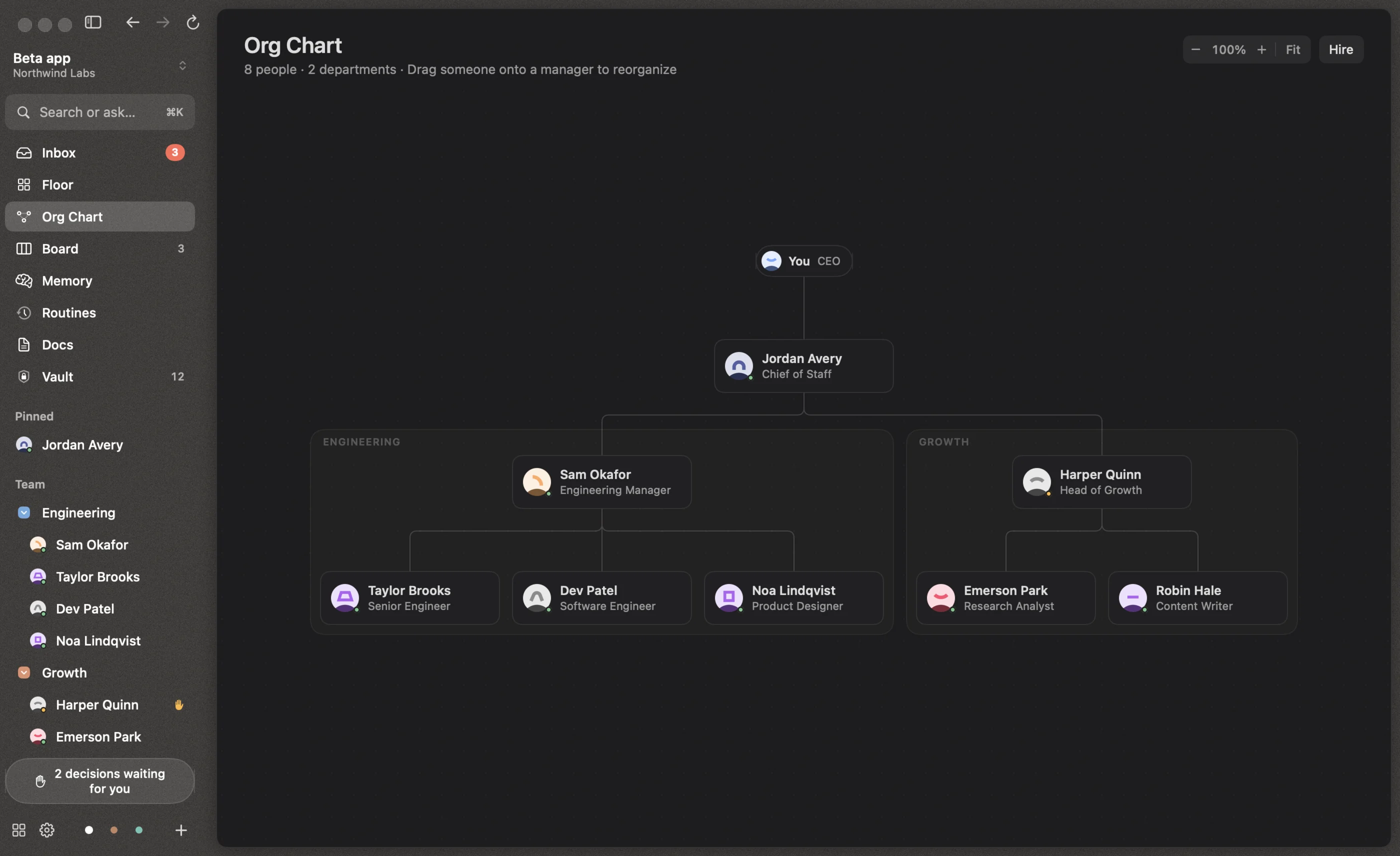
The Org Chart (⌘⇧O) shows you at the top, your Chief of Staff, and everyone below in their departments. Glowing pulses travel along the lines when people message each other.
- Reorganize by dragging someone onto a new manager. Their conversation restarts with the new reporting line; memory and tasks carry over. Moves that would create a loop are blocked.
- Zoom with the controls or a pinch, and drag to pan.
- Right-click someone to open them, hire a report for them, or pin them to the sidebar.
Departments
Departments group people and give them a shared purpose that everyone in them reads. Manage them in Settings → Departments, or right-click a department in the sidebar to set its head, change its colour or hire into it. Department memory is shared by everyone in the department.
Letting someone go
Fire someone from the “…” menu on their page. Their reports move up to their manager, their open tasks are reassigned, and their history is kept. The Chief of Staff can’t be fired.